
How to Install Vu IPTV Player on Android TV?
Published on February 10, 2024 • Updated for 2025
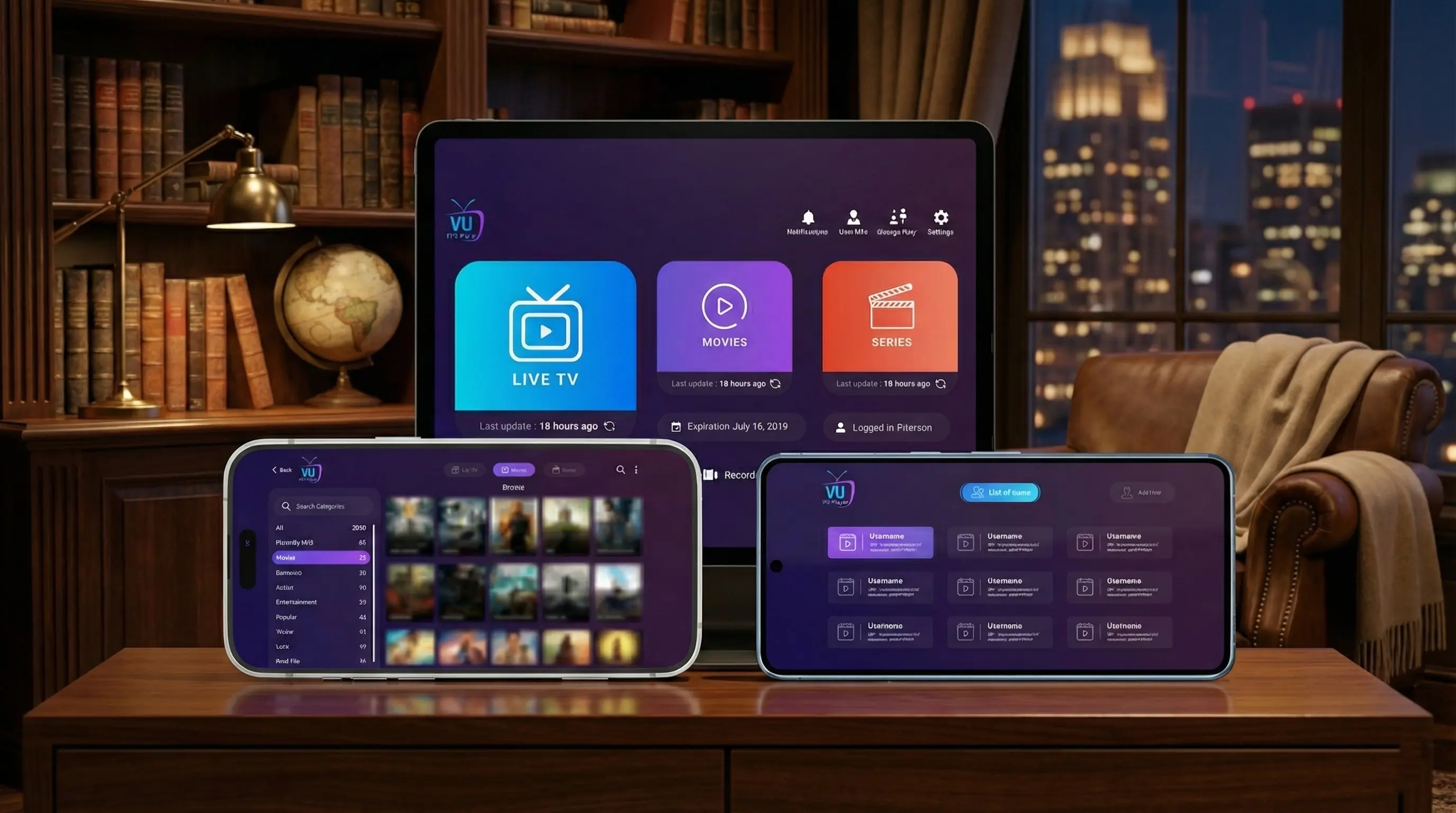
Vu IPTV Player installed on an Android TV device and paired with a fully licensed Vu IPTV subscription.
Vu IPTV Player is a perfect match for Android TV. With one app, you can turn any compatible Android TV into a full IPTV hub for live channels, sports, movies, and series – as long as you connect it to a legal IPTV subscription.
In this guide, you'll see how to install Vu IPTV Player on Android TV using Google Play or a trusted APK source, and how to pair it with our fully licensed Vu IPTV subscription for secure, reliable IPTV streaming.
Prerequisites before you install Vu IPTV Player on Android TV
A clean Android TV installation starts with a few basics. Having these ready avoids most issues people run into when setting up IPTV apps.
You will need:
- An Android TV device or Android TV box connected to your TV
- A stable internet connection (20–30 Mbps or higher for HD and 4K)
- An active, fully licensed IPTV subscription from our Vu IPTV service (45 000+ TV Channels and 140 000+ VODs)
- Your IPTV login details (M3U link or Xtream-style username, password, and server URL)
- Access to the Google Play Store on your Android TV (or a browser for APK fallback)
Step 1 – Install Vu IPTV Player from Google Play on Android TV
The easiest and safest way to install Vu IPTV Player on Android TV is through the official Google Play Store listing. On our Vu IPTV Player download page, we provide direct links to the correct app:
Official Android / Google Play link: https://play.google.com/store/apps/details?id=vuiptv.player
Install steps on Android TV:
- Turn on your Android TV and go to the home screen.
- Open the Google Play Store app.
- In the search bar, type Vu IPTV Player and look for the official app that matches our icon and name.
- Select the app and click Install.
- Wait for the installation to finish, then choose Open to launch Vu IPTV Player.
Step 2 – Alternative APK installation method (if needed)
Some Android TV boxes or region-limited devices may not display Vu IPTV Player in Google Play. In that case, you can install it using a trusted APK source in a similar way to Firestick, but the process depends on your device settings.
Important safety note
Only use APK files from official or clearly trusted sources. On our download page, we always point you to verified links for Vu IPTV Player.
If you are not comfortable with sideloading APKs, stick to the Google Play method or contact our support team for advice about your specific Android TV model.
In many cases, Android TV users never need the APK method because the Google Play version works out of the box. Treat APK sideloading as a backup option only when truly necessary.
Step 3 – Connect Vu IPTV Player to your legal IPTV subscription
Just like on Firestick, Vu IPTV Player on Android TV does not include channels by default. To actually watch content, you must connect it to a legal IPTV provider. Our Vu IPTV service is fully licensed and optimized for Vu IPTV Player.
Connection steps on Android TV:
- Order your IPTV plan from our IPTV packages page or request a 24-hour free IPTV trial.
- After approval, you'll receive your IPTV credentials by email.
- Open Vu IPTV Player on your Android TV and go to the login screen.
- Choose the correct login mode (M3U playlist or Xtream-style portal).
- Carefully enter your username, password, and server URL exactly as shown in the email.
- Allow Vu IPTV Player to sync channels, categories, and the EPG. This can take a few minutes on the first launch.
- Once syncing is done, start browsing live TV, sports, movies, and series.
Troubleshooting Vu IPTV Player on Android TV
Android TV is generally stable, but you might still encounter minor issues like app crashes, buffering, or channel loading problems. Here are some quick fixes.
If Vu IPTV Player won't install or open
- Make sure your Android TV firmware and Google Play Store are up to date.
- Check that you have enough free internal storage on the device.
- Restart your Android TV box and router.
- Uninstall and reinstall Vu IPTV Player from Google Play.
If channels buffer or don't load
- Test your internet speed and avoid heavy downloads while streaming.
- Use Ethernet if possible instead of Wi‑Fi.
- Double-check your IPTV credentials and server URL.
- Contact our support team if problems persist.
Is it legal to use Vu IPTV Player on Android TV?
Vu IPTV Player is simply the IPTV player – it displays channels and VOD provided by your IPTV service. The legal part depends entirely on the provider and whether they have content rights.
Staying compliant with IPTV rules
- Choose IPTV services that clearly publish company details and licensing information.
- Avoid providers that resell obviously pirated streams or hide their identity.
- Use our Vu IPTV service, a fully licensed IPTV provider built to work perfectly with Vu IPTV Player on Android TV.
Best practices for smooth Android TV IPTV streaming
Treat your Android TV like a small streaming computer. Good internet, regular updates, and basic security habits can make a big difference to your Vu IPTV Player experience.
Technical best practices
- Use 20–30 Mbps or higher internet for HD, and more for stable 4K.
- Prefer Ethernet over Wi‑Fi when possible.
- Close other apps that might be streaming or downloading in the background.
- Restart your Android TV box regularly to clear cache and memory.
Account & security
- Never share your IPTV credentials or screenshots of your login page.
- Use only Android TV boxes and stores you trust.
- Reach out to our support team if you suspect unauthorized access.
- Enable parental controls if children also use Vu IPTV Player.
Android TV & Vu IPTV Player – Frequently asked questions
Is Vu IPTV Player free to install on Android TV?
The Vu IPTV Player app is typically free or low-cost depending on region and store. However, you still need a separate paid IPTV subscription to access channels and VOD.
Can I use the same IPTV account on Android TV and other devices?
In many cases, yes – but it depends on your subscription plan and allowed connections. Check your plan details on our IPTV packages page or contact support if you are unsure.
Does Vu IPTV Player support remote control navigation on Android TV?
Yes. Vu IPTV Player is designed for living-room use and works well with Android TV remotes for channel zapping, browsing categories, and selecting VOD titles.
Get started with Vu IPTV Player on Android TV today
With Vu IPTV Player on Android TV, you can turn a simple television into a complete IPTV control center. Combined with a stable connection and a fully licensed IPTV plan, you'll have 45 000+ TV Channels and 140 000+ VODs at your fingertips.
To experience the full Vu IPTV Player setup on Android TV, start with our IPTV service:
- 45 000+ TV Channels and 140 000+ VODs*
- Legal IPTV service with transparent policies
- Optimized for Vu IPTV Player and Android TV devices
- 24/7 customer support for setup and troubleshooting
- Optional 24-hour free IPTV trial so you can test everything before you subscribe
Install Vu IPTV Player on Android TV and unlock premium IPTV
Combine the Vu IPTV Player app with our fully licensed IPTV service to enjoy premium channels, live sports, and a huge VOD library on your Android TV and other devices.