
How to Install Vu IPTV Player on Firestick?
Published on February 1, 2024 • Updated for 2025
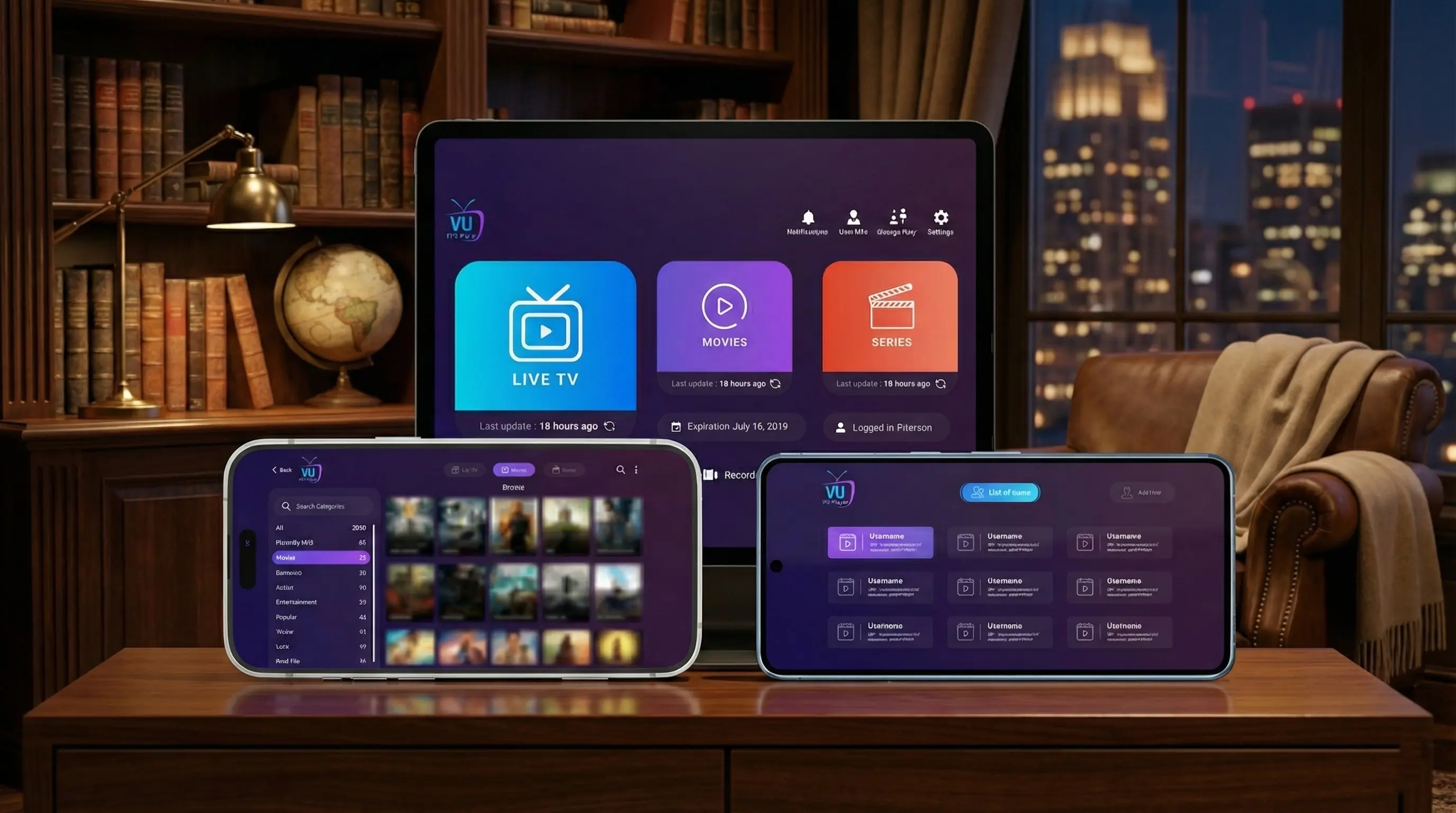
Vu IPTV Player running on an Amazon Fire TV Stick and paired with a fully licensed Vu IPTV subscription.
Vu IPTV Player is one of the most popular ways to watch IPTV on Amazon Fire TV and Firestick when you already have a legal IPTV subscription. Firestick is compact, affordable, and perfect for turning any TV into a powerful IPTV screen.
In this guide, you'll learn exactly how to install Vu IPTV Player on Firestick, how to enable Apps from Unknown Sources safely, and how to connect the app to a fully licensed Vu IPTV subscription for smooth, legal IPTV streaming.
Prerequisites before installing Vu IPTV Player on Firestick
Before you start the Firestick installation, make sure you have the basics in place. This prevents errors later and keeps your setup both safe and legal.
You will need:
- An Amazon Fire TV Stick or Fire TV device connected to your TV
- A stable internet connection (at least 20–30 Mbps for HD and 4K streams)
- An active, fully licensed IPTV subscription from our Vu IPTV service (45 000+ TV Channels and 140 000+ VODs)
- Your IPTV login details (M3U link or Xtream-style username, password, and server URL)
- Enough free storage on your Firestick to install Vu IPTV Player
Step 1 – Enable Apps from Unknown Sources on Firestick
Vu IPTV Player is typically installed on Firestick via a trusted APK link instead of directly from the Amazon Appstore. To allow this, you must first enable installation from unknown sources in your Fire TV settings.
How to enable Apps from Unknown Sources:
- Turn on your Fire TV or Firestick and go to the home screen.
- Navigate to Settings (gear icon in the top-right corner).
- Go to My Fire TV or Device & Software, depending on your Firestick version.
- Select Developer Options.
- Turn on Apps from Unknown Sources. Confirm the security warning – you are using a trusted Vu IPTV Player source.
Security tip
Only enable Apps from Unknown Sources when you are using a verified link such as the one on our official Vu IPTV Player download page. Avoid random APK sites that may host modified or unsafe files.
Step 2 – Download the official Vu IPTV Player APK on Firestick
Once Apps from Unknown Sources is enabled, you can download the Vu IPTV Player APK using a trusted source. On our Vu IPTV Player download page, we recommend a proven Firestick APK link.
Recommended Firestick APK link:
Under the Amazon Fire TV / Firestick section on the download page, we provide a direct, verified APK link:
Download APK: https://vu-iptv-player.bd.aptoide.com/app
Typical download steps on Firestick:
- Install a browser or downloader app on your Firestick (for example, the built-in Silk Browser).
- Open the browser and visit our Vu IPTV Player download page.
- Scroll to the Amazon Fire TV tile and select the Download APK link.
- Confirm the download when your Firestick prompts you.
- Once the download finishes, open the file to start the installation process.
Step 3 – Connect Vu IPTV Player to your legal IPTV subscription
Installing Vu IPTV Player on Firestick is only half the job. To watch anything, you must connect the app to a legal IPTV provider. Our Vu IPTV service is fully licensed and optimized for Vu IPTV Player.
Basic connection steps:
- Order your IPTV plan from our IPTV packages page or request a 24-hour free IPTV trial.
- After approval, you'll receive your IPTV credentials (M3U URL or Xtream codes) by email.
- Open Vu IPTV Player on your Firestick.
- Choose the login method that matches your credentials (M3U playlist or Xtream-style portal).
- Carefully enter your username, password, and server URL exactly as provided in the email.
- Allow Vu IPTV Player to sync channels, categories, and the EPG (TV guide). This may take a few minutes on first launch.
- Once loading is complete, start browsing live channels, sports, movies, and series.
Troubleshooting common Vu IPTV Player Firestick issues
Even with a clean installation, Firestick devices sometimes show minor issues such as buffering, login errors, or missing channels. Here are quick fixes you can apply before contacting support.
If the APK won't install
- Check that Apps from Unknown Sources is still enabled in Firestick settings.
- Make sure you downloaded the APK from the official link on our download page.
- Restart your Firestick and try the installation again.
- Free up some storage by removing unused apps and files.
If channels don't load
- Double-check your IPTV username, password, and server URL.
- Test your internet connection or switch from Wi‑Fi to Ethernet if possible.
- Reboot both your router and Firestick.
- Contact our support team if the issue persists.
Is it legal to install Vu IPTV Player on Firestick?
Vu IPTV Player itself is an IPTV player app – similar to a media player. The legal side does not come from the app alone, but from the IPTV provider and content you connect to it.
How to stay on the safe side
- Use Vu IPTV Player only with IPTV providers that clearly operate with proper content rights and company details.
- Avoid "too good to be true" offers that resell stolen streams.
- Choose our Vu IPTV service, a fully licensed IPTV provider designed to work seamlessly with Vu IPTV Player.
Best practices for smooth Vu IPTV Player streaming on Firestick
To get the most from Vu IPTV Player on Firestick, treat it like any high-quality streaming app: give it good internet, keep it updated, and protect your account details.
Technical best practices
- Use a stable 20–30 Mbps or higher internet connection for HD and 4K streams.
- Connect your Firestick via Ethernet adapter where possible for maximum stability.
- Close heavy downloads or other streaming apps when watching IPTV.
- Keep your Fire OS and Vu IPTV Player app updated.
Account & security
- Never share your IPTV credentials publicly or in social groups.
- Only log in on Firestick devices you control.
- Contact our support team if you suspect unauthorized access.
- Use parental controls when children also use Vu IPTV Player.
Firestick & Vu IPTV Player – Frequently asked questions
Do I need to jailbreak my Firestick to install Vu IPTV Player?
No. You do not need to jailbreak your Firestick. Enabling Apps from Unknown Sources and installing Vu IPTV Player from a trusted APK link is enough for most users.
Is Vu IPTV Player preloaded with channels on Firestick?
No. Vu IPTV Player does not include any channels by default. All live channels, sports, and VOD content come from your IPTV subscription – for example, our own legal Vu IPTV service.
Can I use Vu IPTV Player with other IPTV providers on Firestick?
Yes, as long as they provide compatible playlist or Xtream-style logins. For best stability and legal peace of mind, we recommend using it with our fully licensed Vu IPTV subscription.
What if I get stuck during installation?
Our team is available via the contact page to help you with Firestick setup, troubleshooting, and device recommendations.
Get started with Vu IPTV Player on Firestick today
Installing Vu IPTV Player on Firestick is one of the fastest ways to bring a full IPTV setup to any TV in your home. With a stable connection and a fully licensed subscription, you can unlock 45 000+ TV Channels and 140 000+ VODs from a single compact device.
To experience the full Vu IPTV Player setup on Firestick, start with our IPTV service:
- 45 000+ TV Channels and 140 000+ VODs*
- Legal IPTV service with transparent policies
- Optimized for Vu IPTV Player and Firestick devices
- 24/7 customer support for setup and troubleshooting
- Optional 24-hour free IPTV trial so you can test performance before you subscribe
Install Vu IPTV Player on Firestick and unlock premium IPTV
Combine the Vu IPTV Player app with our fully licensed IPTV service to enjoy premium channels, live sports, and a huge VOD library on your Firestick and every TV it powers.