
How to Install Vu IPTV Player on iPhone?
Published on February 20, 2024 • Updated for 2025
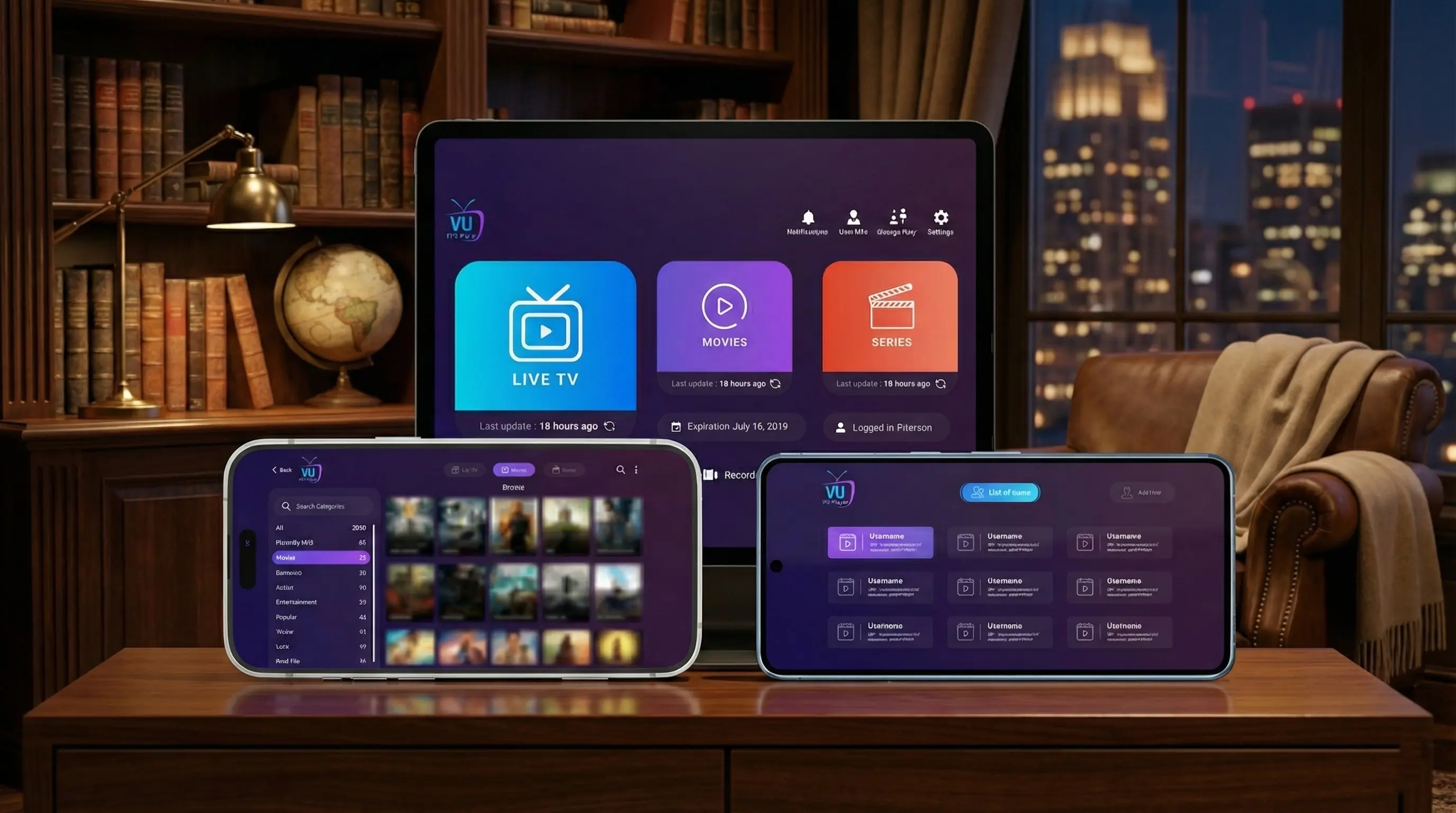
Vu IPTV Player installed on an iPhone and connected to a fully licensed Vu IPTV subscription.
Vu IPTV Player brings your IPTV subscription to the iPhone you carry every day. Whether you're checking live sports scores, catching up on news, or watching a movie on the go, the combination of Vu IPTV Player on iOS and our fully licensed Vu IPTV service gives you a professional, legal IPTV experience on mobile.
In this guide, you'll learn how to install Vu IPTV Player on iPhone using the official Vu IPTV Player download page and the Apple App Store listing. You'll also see how to connect the app to our fully licensed Vu IPTV service so you can unlock 45 000+ TV Channels and 140 000+ VODs on your iPhone.
Prerequisites before you install Vu IPTV Player on iOS
Before downloading any IPTV app on iPhone, it's important to check a few basics. This ensures smooth performance and keeps your IPTV usage inside a safe and legal framework.
You will need:
- An iPhone running a supported iOS version (see current requirements in the App Store).
- A stable internet connection (Wi‑Fi recommended for HD and 4K IPTV streaming).
- An active, fully licensed IPTV subscription from our Vu IPTV service (45 000+ live channels and 140 000+ VOD titles).
- IPTV login details (M3U link or Xtream-style username, password, and server URL).
- Access to the Apple App Store with your Apple ID.
Step 1 – Install Vu IPTV Player from the Apple App Store
The safest and recommended way to install Vu IPTV Player on iPhone is through the official Apple App Store. On our download page, we link directly to the correct App Store listing so you don't confuse Vu IPTV Player with other IPTV apps such as Vu Player Pro.
Official iOS / App Store link: https://apps.apple.com/us/app/vu-iptv-player/id6526480705
Install steps on iPhone:
- Unlock your iPhone and open the App Store.
- Tap the search tab and type Vu IPTV Player. Look for the official name, icon, and publisher details.
- Tap the app in the results and press Get, then confirm with Face ID, Touch ID, or your password.
- Wait for the download and installation to complete.
- Tap Open to launch Vu IPTV Player on your iPhone.
Step 2 – Grant basic permissions and finish setup on iPhone
When you open Vu IPTV Player for the first time on iOS, you may be asked for a few basic permissions. Apple's security model keeps these prompts clear and limited, but it's still important to understand what you're approving.
Common permissions you may see:
- Network access – Required so Vu IPTV Player can reach your IPTV server and stream content over Wi‑Fi or mobile data.
- Notifications (optional) – In some versions, you may opt‑in to basic notifications. You can always change this later in iOS Settings.
- Background activity – Some iOS settings may allow the app to refresh content in the background for smoother browsing.
Step 3 – Connect Vu IPTV Player to your legal IPTV subscription
After Vu IPTV Player is installed on your iPhone, the final step is to connect it to a reliable, fully licensed IPTV provider. Our Vu IPTV packages are optimized specifically for Vu IPTV Player on phones, tablets, and Smart TVs.
Connection steps on iPhone:
- Order your IPTV plan from our IPTV packages page or request a 24-hour free IPTV trial.
- Once your account is activated, you will receive your IPTV login details by email.
- Open Vu IPTV Player on your iPhone.
- Select the login method that matches your credentials (M3U playlist or Xtream-style login).
- Carefully enter your username, password, and server/portal URL.
- Allow Vu IPTV Player to sync 45 000+ live channels and 140 000+ VOD titles. The first load may take a few minutes depending on your connection.
- Once syncing finishes, browse your categories and start streaming.
Troubleshooting Vu IPTV Player on iPhone
If Vu IPTV Player doesn't behave as expected on iOS, a few quick checks usually solve the problem. Here are practical fixes for the most common issues.
If the app won't install or open
- Check that your iPhone has enough free storage space.
- Make sure your iOS version meets the minimum requirement in the App Store listing.
- Restart your iPhone and try downloading Vu IPTV Player again.
- Delete and reinstall Vu IPTV Player if it continues to crash on startup.
If channels buffer or freeze on iOS
- Switch from mobile data to a reliable Wi‑Fi network when possible.
- Close other apps that might be downloading or streaming in the background.
- Test your connection speed; aim for at least 10–20 Mbps for HD IPTV.
- If problems persist, contact our support team with your device and iOS version details.
Is it legal to use Vu IPTV Player on iPhone?
The Vu IPTV Player app itself is a neutral IPTV player, available via the official Apple App Store. The legal responsibility comes from the IPTV provider and the content you choose to watch.
How to keep your IPTV usage compliant
- Choose IPTV providers that clearly publish ownership and licensing details.
- Avoid unverified resellers promising thousands of channels for unrealistically low prices.
- Use our Vu IPTV service, a fully licensed IPTV provider designed to work perfectly with Vu IPTV Player on iPhone, Android, Smart TV, and more.
Best practices for smooth IPTV streaming on iOS
iPhones are powerful devices, but network conditions and battery settings can still affect streaming. Follow these iOS‑specific best practices to get the best results with Vu IPTV Player.
Technical tips for iOS
- Use Wi‑Fi whenever possible to improve stability and reduce mobile data usage.
- Disable Low Data Mode on Wi‑Fi or mobile if it's throttling your connection.
- Keep both iOS and Vu IPTV Player updated to the latest versions.
- Restart your iPhone occasionally to clear cache and background processes.
Account & security on iPhone
- Protect your IPTV credentials with Face ID / Touch ID and a strong device passcode.
- Never post screenshots of your login details online or share them in groups.
- Contact our support team if you suspect account abuse or unauthorized access.
- Use Screen Time and parental controls if children may use Vu IPTV Player on your iPhone.
iPhone & Vu IPTV Player – Frequently asked questions
Can I use the same Vu IPTV subscription on my iPhone and my TV?
Often yes, but it depends on how many simultaneous connections your IPTV plan allows. Review the details on our IPTV packages page or contact support if you need clarification.
Does Vu IPTV Player support picture‑in‑picture on iPhone?
Picture‑in‑picture support depends on your iOS version and Apple's current policies. Many users can keep IPTV content playing in a small window while using other apps, but behavior can vary across updates.
Can I install Vu IPTV Player on iPad as well?
In most cases, yes. If your iPad uses the same Apple ID and supports the current app version, you can download Vu IPTV Player from the App Store and follow a similar setup process.
Get started with Vu IPTV Player on iPhone today
Installing Vu IPTV Player on your iPhone takes just a few minutes, but it completely changes how you watch IPTV. With the right IPTV provider and a strong connection, your iPhone can access 45 000+ live TV channels and 140 000+ VOD titles wherever you are.
To experience the full iOS setup with Vu IPTV Player, start with our IPTV service:
- 45 000+ TV Channels and 140 000+ VODs*
- Legal IPTV service with clear, transparent policies
- Optimized for Vu IPTV Player on iPhone, Android, Smart TV, and more
- 24/7 customer support for installation and troubleshooting
- Optional 24-hour free IPTV trial so you can test performance on iPhone and TV before subscribing
Install Vu IPTV Player on iPhone and unlock premium IPTV on iOS
Combine the Vu IPTV Player iOS app with our fully licensed IPTV service to enjoy live channels, sports, and a huge VOD library on the iPhone you already use every day.