
How to Upload IPTV Playlist on Vu IPTV Player?
Published on February 25, 2024 • Updated for 2025
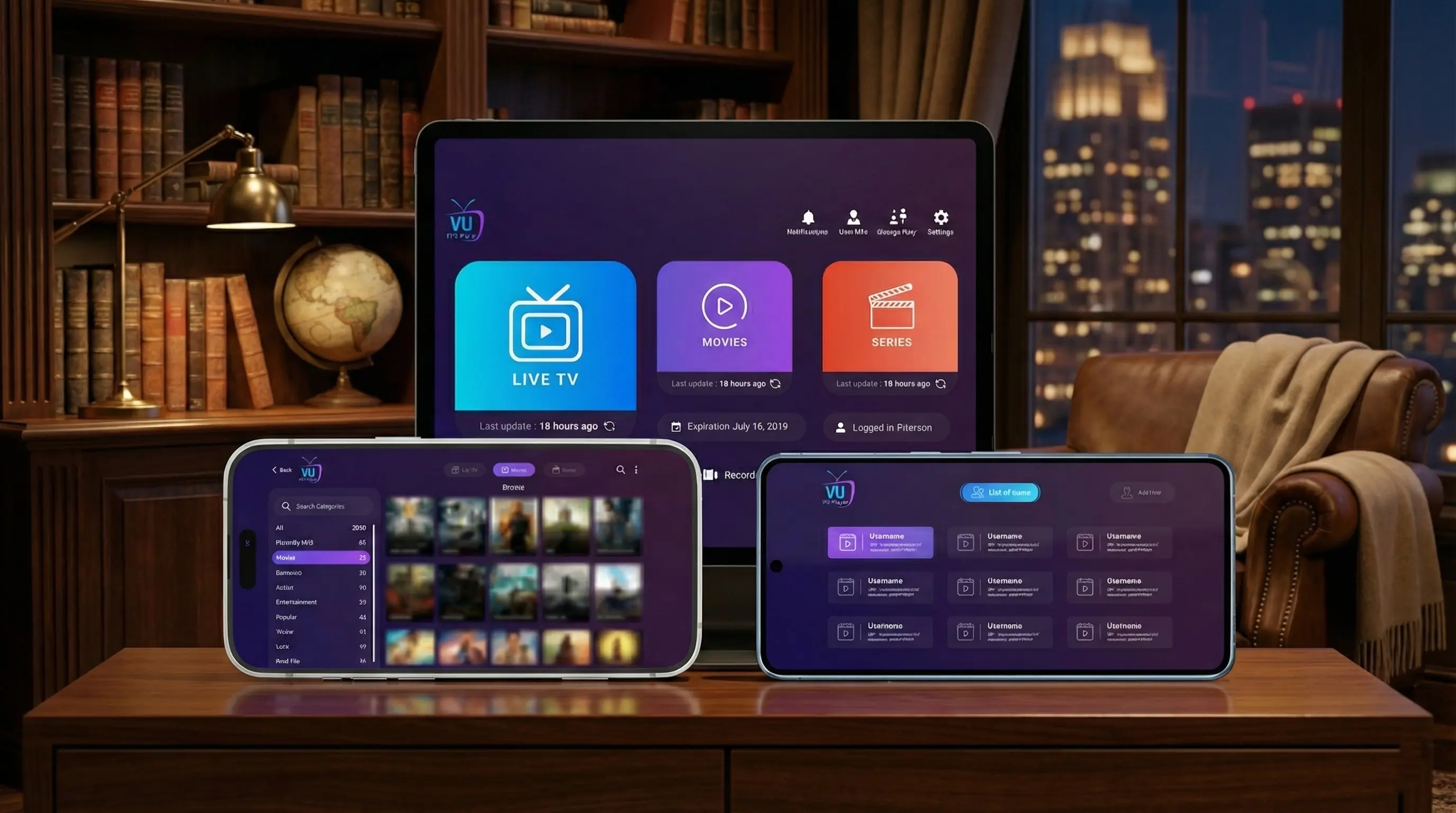
Vu IPTV Player connected to a licensed IPTV subscription and loaded with an IPTV playlist containing live TV and VOD.
Vu IPTV Player is the app that turns your IPTV playlist into a complete TV experience. The quality of your streaming doesn't only depend on the player – it also depends on the IPTV playlist you upload and the provider behind it.
In this guide, you'll learn exactly how to upload IPTV playlists to Vu IPTV Player using the most common formats: M3U URLs and Xtream codes (username, password, server URL). We'll also cover how to stay safe, avoid broken lists, and connect Vu IPTV Player to our fully licensed Vu IPTV service for 45 000+ live TV Channels and 140 000+ VOD titles.
IPTV playlist types supported by Vu IPTV Player (M3U & Xtream)
Vu IPTV Player is designed to work with the most widely used IPTV playlist formats so you can connect quickly to a legitimate IPTV provider.
The two most common ways to connect:
- M3U playlist URL – A single link that contains your channels, groups, and sometimes EPG (TV guide) information.
- Xtream login – A portal-style login made of server/URL, username, and password.
Your licensed IPTV provider, such as our Vu IPTV service, will specify which option you should use and provide the exact details.
Prerequisites before uploading your IPTV playlist
Before you add any playlist into Vu IPTV Player, make sure you have the correct, up‑to‑date information from a transparent, licensed IPTV provider.
You will need:
- Vu IPTV Player installed on your device (see our Download page for links to Android, iOS, Smart TV and more).
- An active, fully licensed IPTV subscription from Vu IPTV or another legal provider.
- IPTV access details:
- Either an M3U playlist URL, or
- An Xtream-style login: server/portal URL, username, and password.
- A stable internet connection (preferably Wi‑Fi for HD/4K streaming).
Step 1 – Upload an M3U IPTV playlist in Vu IPTV Player
If your IPTV provider sends you an M3U link, you can add it directly into Vu IPTV Player. The exact interface may differ slightly between devices, but the logic is always the same: create a new profile, paste the playlist URL, and let Vu IPTV Player sync your content.
Typical steps to upload an M3U playlist:
- Open Vu IPTV Player on your device.
- Go to the section where you can add a new playlist or add a new account.
- Select the M3U or Playlist URL option.
- Give your playlist a clear name (for example: Vu IPTV – Main), so you can identify it later.
- Paste your full M3U URL exactly as provided by your IPTV provider.
- Confirm and allow Vu IPTV Player to download and process the playlist.
- Once the sync is complete, you should see live TV categories, VOD, and series inside the app.
If you're using our Vu IPTV packages, your M3U URL will be clearly labeled in the email you receive after ordering or after your 24-hour IPTV trial is approved.
Step 2 – Add an Xtream IPTV account in Vu IPTV Player
Many IPTV providers now use Xtream-style logins because they offer better control and faster guide syncing. Vu IPTV Player supports this method so you can log in with your IPTV account like you would log in to a portal.
Typical steps to add an Xtream account:
- Open Vu IPTV Player and navigate to Add account or Add portal.
- Select the option for Xtream or API login.
- Enter the server/portal URL provided in your IPTV welcome email.
- Type your username and password exactly as shown.
- Choose a profile name for this account (for example: Vu IPTV Xtream).
- Confirm and allow Vu IPTV Player to connect to the server and load your channels and VOD.
- After syncing, browse your categories and test a few channels and movies.
Step 3 – Organize channels, favorites, and VOD inside Vu IPTV Player
A good playlist becomes even more powerful when you organize it inside Vu IPTV Player. While options differ by device, most versions of the app allow you to manage categories and favorites so your most-watched channels and VOD are always one tap away.
Channel organization tips
- Use favorites to mark your most-watched sports, news, and movie channels.
- Hide or skip categories you never use to keep the interface clean.
- Learn the search and filter tools inside Vu IPTV Player for faster navigation.
VOD and series tips
- Create a watch‑later list by favoriting VOD titles you want to return to.
- Check categories like Movies, Series, and Kids to see how your provider organizes content.
- Test a few VOD titles to make sure quality and subtitles match your expectations.
Troubleshooting IPTV playlist issues in Vu IPTV Player
If your playlist doesn't load or channels behave strangely, the problem is often in the playlist details rather than in Vu IPTV Player. Here are the first checks you should make.
If nothing loads after upload
- Double-check your M3U URL or Xtream credentials for spelling mistakes.
- Confirm with your provider that your account is active and not expired.
- Test your internet speed to ensure you have enough bandwidth.
- Try removing the playlist and adding it again with fresh details from your provider.
If some channels buffer or fail
- Switch from mobile data to Wi‑Fi or to a faster, more stable network.
- Close other streaming or download apps running in the background.
- Test multiple channels to see if the issue is with specific content.
- If issues remain, contact your IPTV provider or our support team with your device and playlist details.
Legal notes – using Vu IPTV Player with licensed IPTV playlists
Uploading an IPTV playlist into Vu IPTV Player is technically simple, but it's your responsibility to choose a provider that respects content rights. That's the difference between a risky streaming setup and a long‑term, sustainable solution.
How to stay on the safe side
- Choose IPTV providers that clearly show company details and licensing information.
- Avoid random M3U lists shared in groups, forums, or social media without transparency.
- Use our Vu IPTV service, a fully licensed IPTV provider designed to work perfectly with Vu IPTV Player on all supported devices.
Vu IPTV Player playlist upload – Frequently asked questions
Can I upload more than one IPTV playlist into Vu IPTV Player?
Many users manage multiple accounts or playlists. Depending on your device version, Vu IPTV Player may allow several profiles so you can switch between different licensed IPTV subscriptions or test lists during a 24-hour trial.
Can I use the same playlist on my phone and TV?
Often yes, but it depends on how many connections your IPTV subscription allows. Check your plan details on our IPTV packages page or contact support if you're unsure.
Does Vu IPTV Player host or sell channels?
No. Vu IPTV Player is a player app. Your IPTV content comes from the provider whose playlist or Xtream login you upload. That's why using a licensed IPTV provider like Vu IPTV is essential if you care about stability and legality.
Get started with Vu IPTV Player and a licensed IPTV playlist
Uploading an IPTV playlist to Vu IPTV Player is only the beginning. The real difference comes from pairing the app with a stable, licensed IPTV provider that delivers 45 000+ TV Channels and 140 000+ VOD titles on fast, reliable servers.
If you're still choosing a provider or testing the waters, start with our IPTV service:
- Transparent, legal IPTV service built for Vu IPTV Player
- 45 000+ TV Channels and 140 000+ VOD titles*
- Optimized for multi‑device viewing (phone, TV, tablet, and more)
- 24/7 customer support for setup and troubleshooting
- Optional 24-hour free IPTV trial so you can test your playlist and devices before committing
Upload your IPTV playlist to Vu IPTV Player and enjoy premium IPTV
Combine Vu IPTV Player with a licensed IPTV playlist from our Vu IPTV service to experience smooth zapping, reliable servers, and a premium channel and VOD library on every screen.